How to manage your data The full Lincoln experience
Getting started
We can’t wait to share our full experience with you. Sharing your data makes it possible. Here, we’ll walk you through your options in the Lincoln app, 164 in vehicle, and on Lincoln.com.
Want to learn more, first? Find out what your data is used for.
And for all of our privacy details, review our Lincoln Privacy Notices.
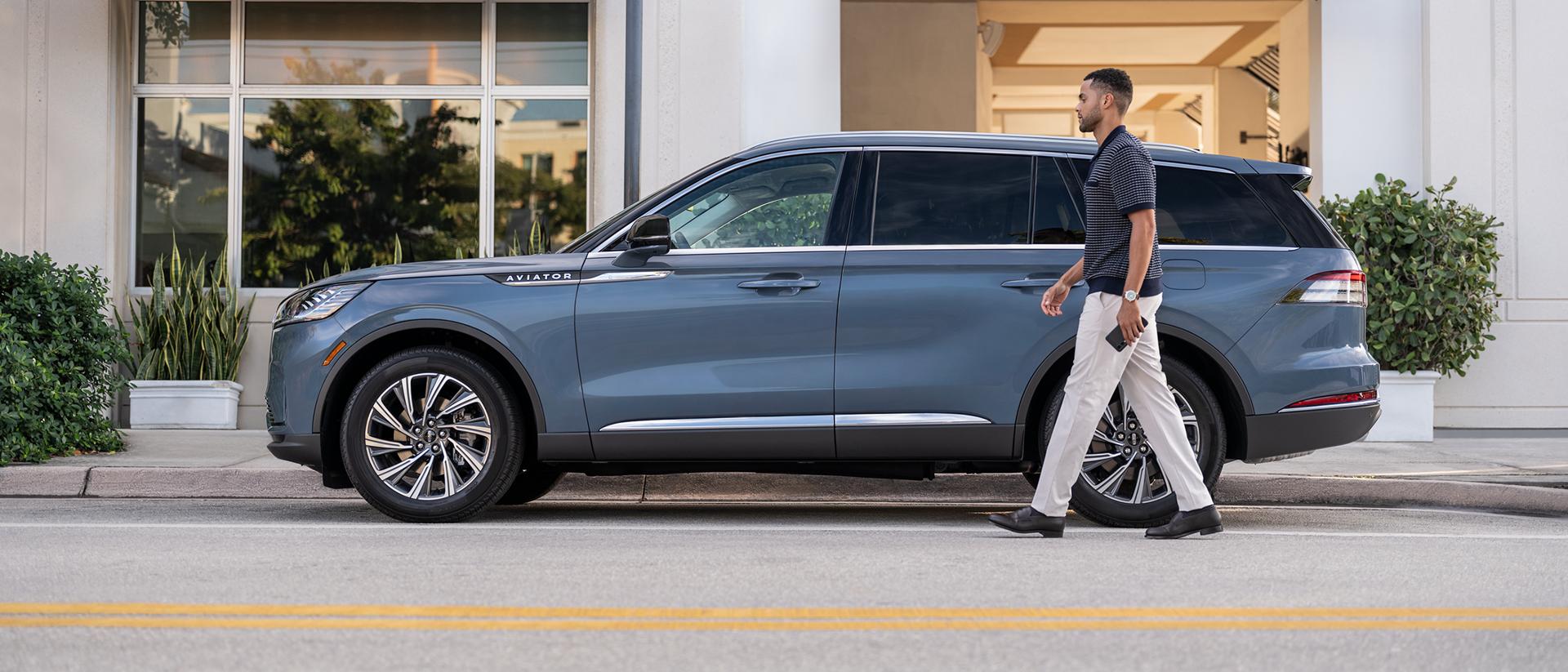
Connect your Lincoln vehicle using the Lincoln app.

1: Set up the Lincoln app
a. Download the Lincoln app 164 from the App Store® or Google Play™ store
b. Create an account and sign in
If you already have a Lincoln Account online, you can use the same username and password to sign in.
2: Add your vehicle to the app
a. On the home screen, select + Add vehicle
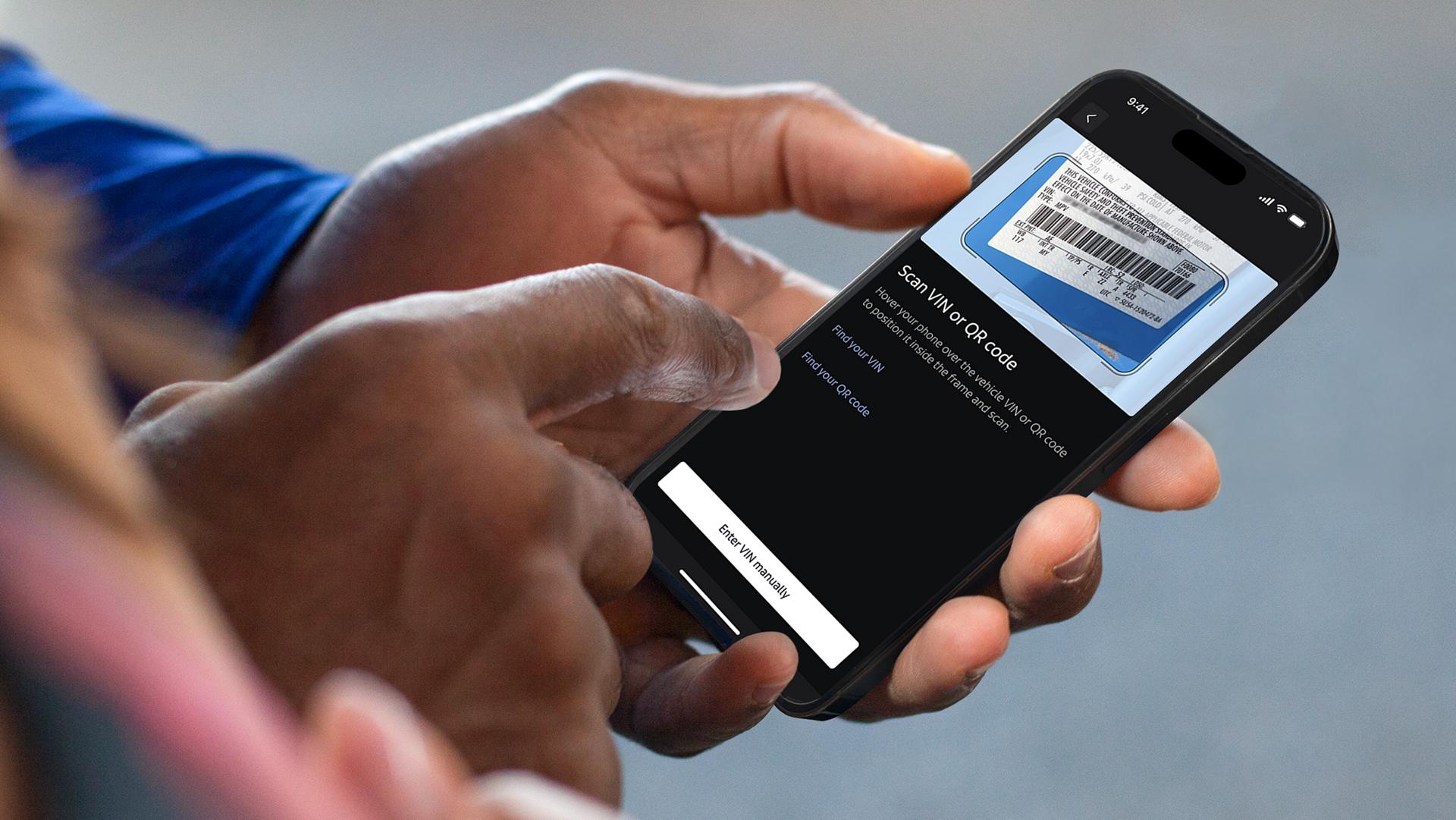
b. The app will ask allow to use camera. Agreeing allows you to scan Vehicle Identification Numbers (VINs) and QR Codes
c. Scan your VIN or QR Code. Or, if you prefer not to share camera access, you can enter your VIN manually.
Your vehicle will be added to your garage. If you’re having trouble, select Find your VIN or Find your QR Code in the app to guide you.
3: Connect to vehicle
Ensure that your vehicle is parked and running in an open, well-ventilated, and safe area, then:
a. Confirm your Vehicle Connectivity Settings are enabled within your vehicle
b. Open the Lincoln app
c. Select Connect to Vehicle
d. Select I've Started my Vehicle
e. Review and when ready accept the prompt on your vehicle screen
f. Select Check Connection Status once you accept the in-vehicle prompt
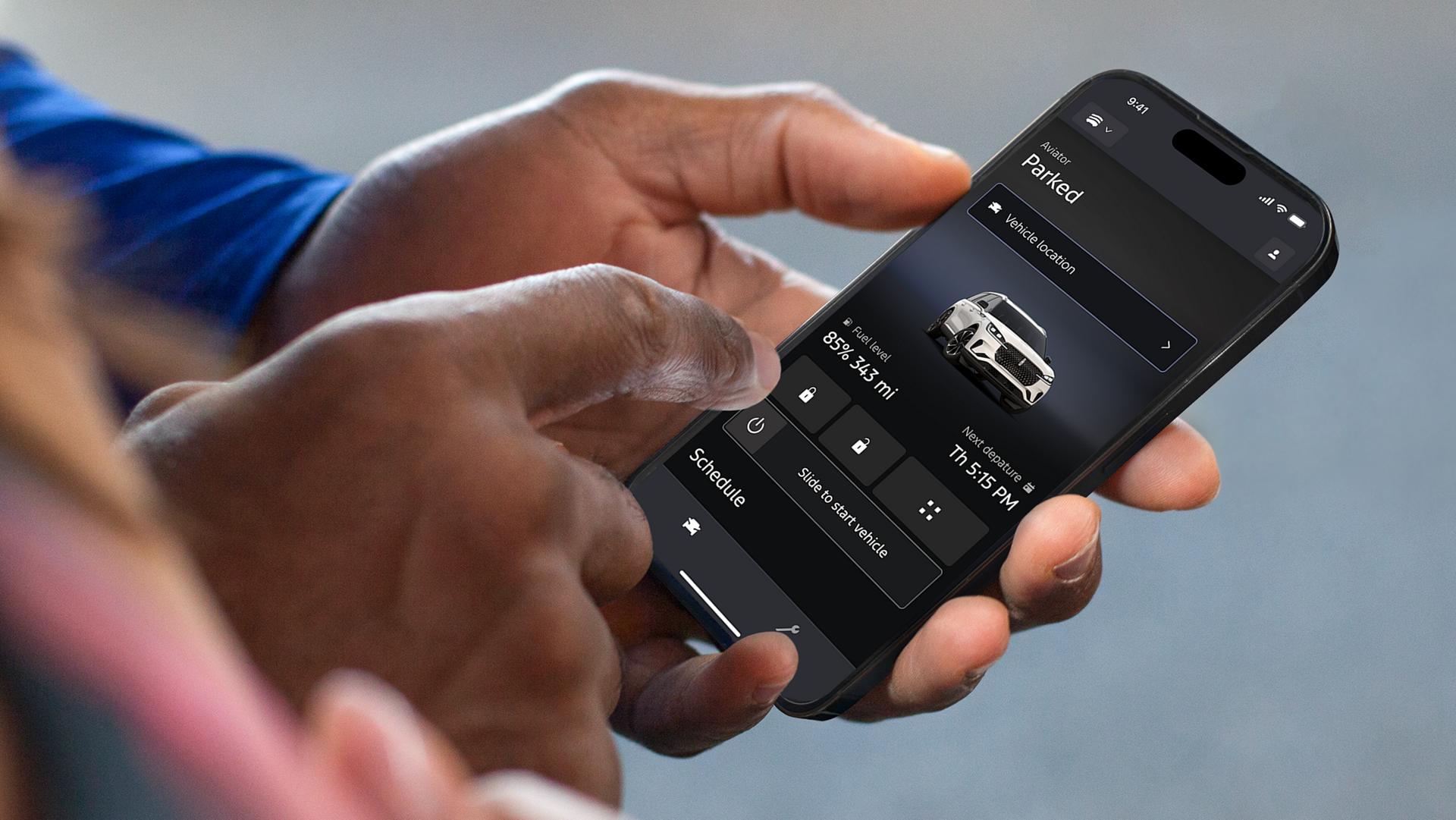
The Lincoln app will route you back to the Vehicle screen, and the remote commands (if available) should appear below your vehicle image.
Benefits of connected features
Personalize your experience.
Once your Lincoln vehicle is added to the Lincoln app, 164 your Lincoln is at your fingertips with plenty of remote features to enjoy. Discover capabilities in the Lincoln app and online, and you’ll find even more to love.

Adjusting data settings
Manage as you go
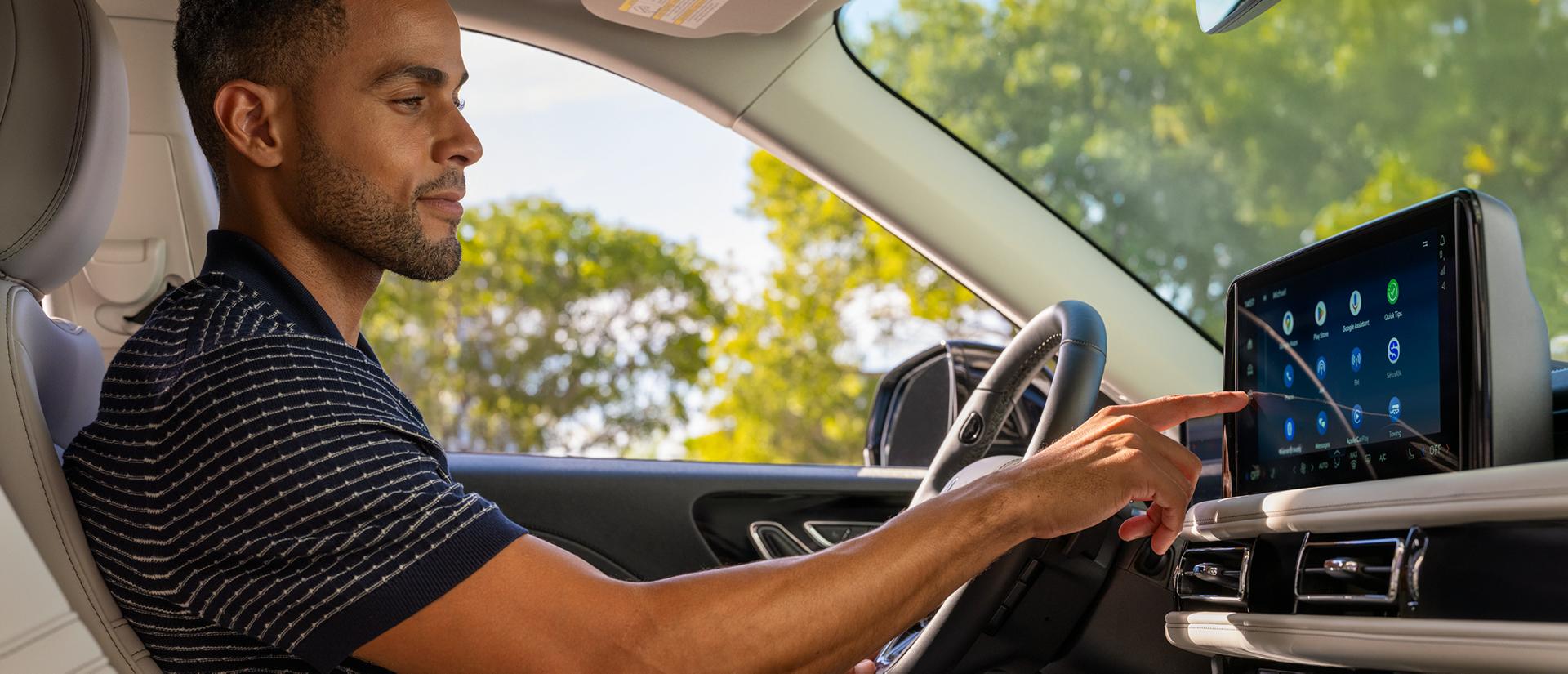
Vehicle data sharing settings can be adjusted conveniently in your Lincoln vehicle itself. You can also adjust certain settings in the Lincoln app and your Lincoln Account online. Note some settings may be required for some services to function properly.

FAQ
Things you should know
Get quick answers here. And for all the details, read our Privacy Notice.
Where can I find Lincoln privacy-related settings?
Find and manage the different privacy settings for your connected vehicle data in-vehicle, online in your Lincoln Account, and in the Lincoln app. 164 Vehicle-related data sharing with Lincoln and uses can primarily be found in-vehicle, while account and app-related settings can be found in app and in your account online. Find a high-level explanation in the Manage as You Go section of this page or get step-by-step instructions.
How do I adjust privacy settings in the Lincoln app?
- On the app home screen, select account icon
- Scroll to Settings section and choose Legal and privacy
- Select Privacy and data sharing
- You’ll be presented a page where you have the option to Set Preferences for Manage Data with Lincoln and Manage Data with Third Parties
- From Manage Data with Lincoln, adjust sliders to manage your Personalization and Marketing choice for Vehicle Data and Driving Data
- From Manage Data with Third Parties, adjust sliders to manage Google Maps in the Lincoln app
- From Manage Data with Third Parties, adjust sliders to Notify your preferred dealer when the vehicle needs service — please note, this selection is only viewable if you have already selected a preferred dealer
Note: If you have multiple vehicles in your garage, you’ll need to adjust settings for each vehicle.
Can I choose which connected vehicle data I share?
Yes, you control which connected vehicle data you share with Lincoln. You have the ability to change and choose what data you share at any time, including turning off all connectivity, in-vehicle. You can also manage other data sharing in app and online in your Lincoln Account.
Please Note: If your vehicle is equipped with the available Lincoln Security Package, * some vehicle settings may be unavailable and Vehicle Location Data may be collected when a Theft Alert is triggered. ** Learn more about adjusting in-vehicle settings.
How do I remove my data from my vehicle when I sell it?
Remove any stored personal information from the vehicle by performing a factory reset. Information such as addresses and phone books that are saved, accounts that have been signed in (such as Google), as well as any garage door opener codes you may have programmed into the vehicle will be removed from the vehicle. This reset will not delete your Lincoln Account and data you’ve already shared with Lincoln, such as driving and location data.
If you’re unable to perform a factory reset for any reason, contact us at (800) 521-4140.
If I don’t want my Lincoln vehicle to share any data with Lincoln, how do I confirm I’m not sharing?
If you’d like to ensure you’re not sharing data, check Vehicle Connectivity in your Settings menu in-vehicle and toggle it off. Toggling off Vehicle Connectivity will limit some vehicle functionality, such as Connected Services. You can also manage these settings online in your account and in the Lincoln app. 164