What should I do if I get an LST_ERR05 message when updating my SYNC 3 Navigation map?
If you receive an LST_ERR05 message when attempting to install your SYNC®* 3 Navigation map update, use the following steps.
Find your SYNC 3 software version:
- Select Settings on your vehicle's SYNC 3 screen.
- Tap General.
- Select About or About SYNC.
- If your vehicle has SYNC 3 v3.0, there should be eight files in the SyncMyRide folder on your USB drive. If the map license key file, JR3T-14G424-CL.TAR.GZ, is missing, you will see the LST_ERR05 message when installing the map update.
- If your vehicle has SYNC 3 v3.3 or v3.4, there should be 15 files in the SyncMyRide folder on your USB drive. If the map license key file, 4U5T-14G424-CJ.TAR.GZ, is missing, you will see the LST_ERR05 message when installing the map update.
- If there is a duplicate of this license key file, rename the duplicate.
When the Map License Key File is Missing
Drag and drop the map license key file into the SyncMyRide folder on your USB if missing. The file is downloaded by selecting the #3. Download License File button on the page shown below. After you order the SYNC map update, the screen below displays.
Note: The file must remain zipped.
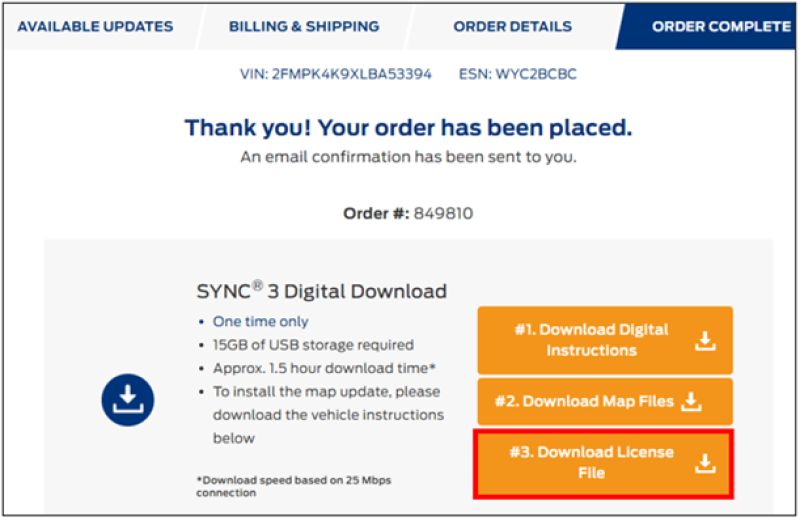
- Install the update again.
If the above steps do not resolve the issue, contact the Lincoln Client Relationship Center at 1-800-521-4140 or select Live Chat in the bottom-right corner of lincoln.com/support.
Additional Information
How do I install SYNC 3 map updates?
*Don't drive while distracted or while using handheld devices. Use voice-operated systems when possible. Some features may be locked out while the vehicle is in gear. Not all features are compatible with all phones.