How do I set up Apple CarPlay in my Lincoln vehicle?
You can set up Apple CarPlay® with Lincoln Digital Experience* or SYNC®** by connecting your iPhone® (or iPad®) via USB or Bluetooth® (if enabled).
Setting Up Apple CarPlay
Important:
- Ensure your vehicle is running and in Park (P) in an open, well-ventilated, and safe area.
- A recent device update may impact its connection to your vehicle. If you are experiencing pairing issues after following the steps below, try turning your device off, waiting 60 seconds, and turning it back on.
Select Lincoln Digital Experience or your SYNC generation from the drop-down options below to learn how to connect to Apple CarPlay. If you need assistance determining your system's generation, select the first drop-down option.
Note: Instructions may vary. See your Owner’s Manual for information specific to your vehicle.
Identifying Your Vehicle's SYNC Generation
Select a resource in the table below to help you identify your vehicle's SYNC generation.
| Resource | Instructions |
| SYNC and Navigation Updates page | Either:
Your SYNC generation will appear on the right side of the page under the “SYNC Current Version” heading. |
| SYNC Visual Reference Guide | View example images of SYNC generations that Lincoln has offered. |
Lincoln Digital Experience
- Pair your Apple device with your Lincoln Digital Experience system.
- Select Start Apple CarPlay when the pop-up message appears on your vehicle's screen.
The initial setup is completed, and an Apple CarPlay icon will display on the left side menu of the touchscreen.
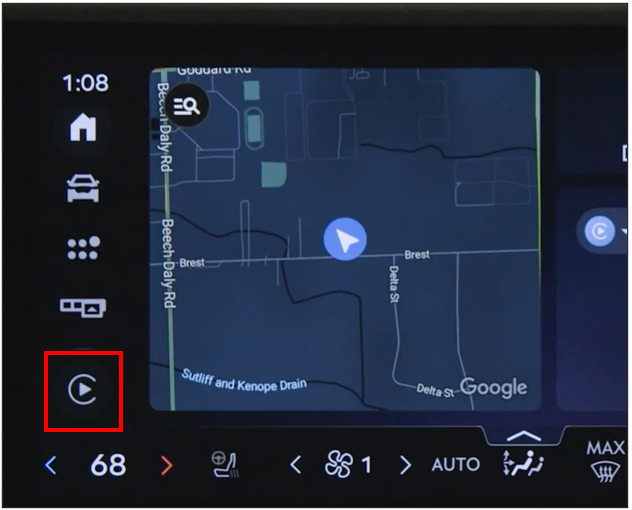
SYNC 4
- Pair your Apple device to SYNC.
- Select Enable when the pop-up message appears on your vehicle's screen.
The initial setup is completed, and Apple CarPlay will appear in your Apps menu.
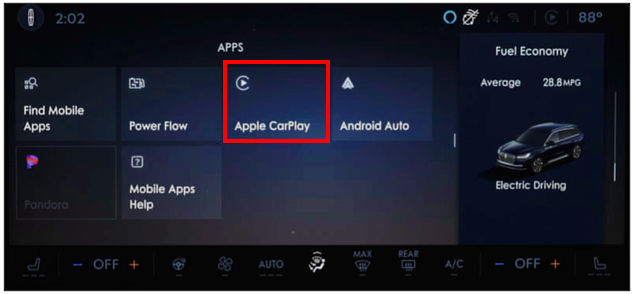
SYNC 3
- Enable Siri in your Apple device settings.
Note: Refer to your phone's operating manual or the manufacturer's website, as instructions vary by model.
- Plug the device into the vehicle's USB port with an Apple cable.
- Tap Continue on the pop-up window on your vehicle's SYNC screen.
- Read the Privacy & Terms of Use in the next pop-up window, and select Agree to accept.
- Press Allow on the device for SYNC 3 to complete the Apple CarPlay setup.
Apple CarPlay will automatically display on your SYNC 3 touchscreen.
Additional Information
How do I disable Apple CarPlay with SYNC?
Which Lincoln vehicles are compatible with Apple CarPlay?
What should I do if I am having issues with Apple CarPlay?
*Some Lincoln Digital Experience features require a Connected Services plan. Don’t drive while distracted or while using handheld devices. Use voice-operated systems when possible. Some features may be locked out while the vehicle is in gear. Not all features are compatible with all phones.
**Do not drive while distracted or while using handheld devices. Use voice-operated systems when possible. Some features may be locked out while the vehicle is in gear. Not all features are compatible with all phones.
iPhone, iPad, Apple CarPlay, and Siri are trademarks of Apple Inc., registered in the U.S. and other countries.
The Bluetooth® word mark and logos are registered trademarks owned by Bluetooth SIG, Inc. and any use of such marks by Ford Motor Company is under license.